
A fiber subscription at 500 Mb/s does not automatically produce 500 Mb/s on every device connected via Wi-Fi. The bottleneck is rarely at the line level, but rather between the router and the devices. Understanding where the bandwidth is lost allows you to recover a large portion of the bandwidth paid for each month, without changing your plan.
Router and Wi-Fi card: the real bottleneck at 500 Mb/s
You connect the fiber, run a wired speed test, and everything is fine. You switch to Wi-Fi, and the result sometimes drops by half. The problem is not the line; it’s the radio equipment.
An analysis reported by NBN Co in September 2026 shows that among customers with a 500 Mb/s plan, 26% were still using Wi-Fi 4. This standard caps well below what the line can provide. Even with a recent router, if the laptop or tablet has an old Wi-Fi card, it is the weakest link that determines the speed.
Before adjusting the router settings, check two things: the Wi-Fi standard supported by the router (Wi-Fi 5 minimum, Wi-Fi 6 recommended) and that of each connected device. A smartphone compatible with Wi-Fi 6 paired with a Wi-Fi 5 router will default to Wi-Fi 5. The same goes for the reverse. To take advantage of the ideal speed for 500 mbps wifi, both ends of the chain must speak the same language.
2.4 GHz, 5 GHz or 6 GHz band: which choice for 500 Mb/s over Wi-Fi
The selected frequency band radically changes the speed measured on the screen. On the 2.4 GHz band, the signal penetrates walls better, but the available spectrum is narrow and saturated by neighbors, connected devices, and even microwaves. The result: the actual speed rarely exceeds a fraction of the subscribed offer.
The 5 GHz band offers the best compromise between range and speed for a 500 Mb/s plan. The spectrum is wider, there are fewer interferences, and a Wi-Fi 5 or 6 router on this band can approach 400 to 500 Mb/s in the same room.
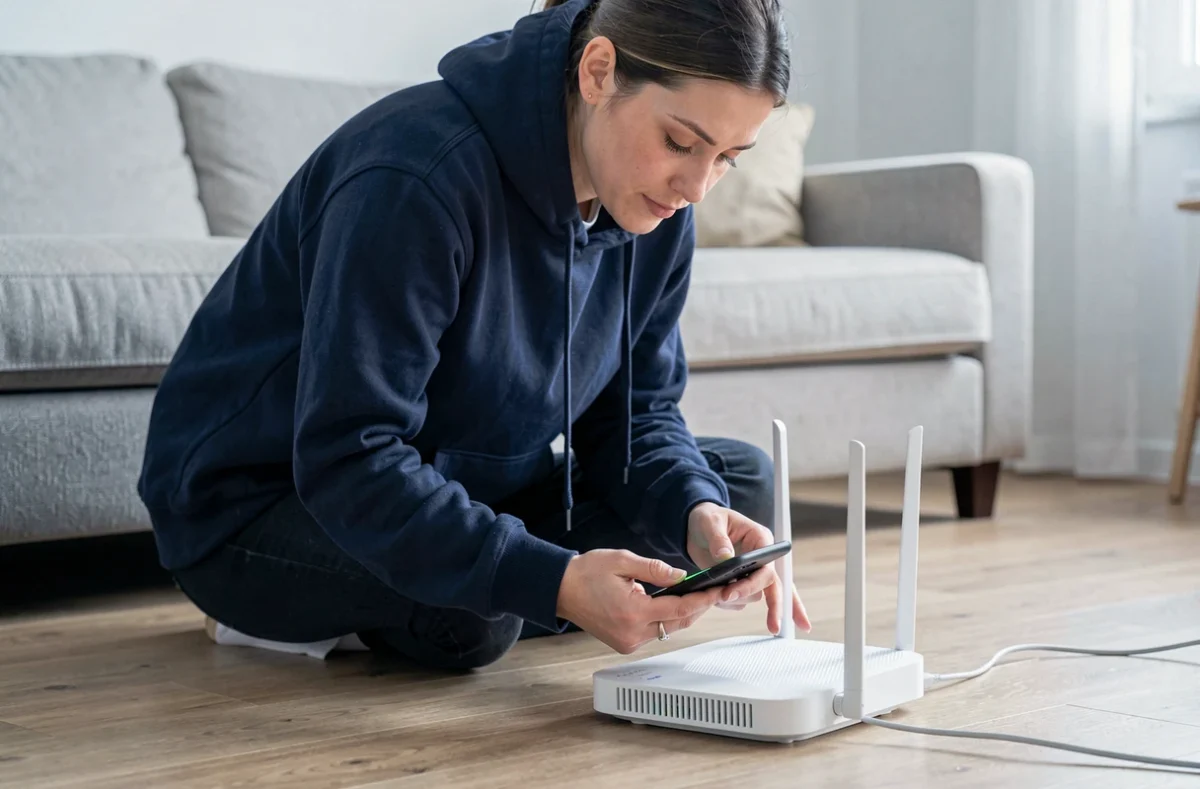
The 6 GHz band, available in France on Wi-Fi 6E and Wi-Fi 7 routers, adds even more spectrum and reduces congestion. However, its range is shorter. Through a load-bearing wall or on a different floor, the 6 GHz signal degrades quickly. For a compact apartment, this is a real gain. For a two-level house, the 5 GHz band often remains more reliable.
Concrete settings on the box or router
Most operator boxes enable “band steering” by default: the router chooses the band instead of the device. This mechanism works correctly in most cases, but sometimes it keeps a device on the 2.4 GHz band when the 5 GHz band would be accessible.
- Separate the 2.4 GHz and 5 GHz networks by creating two distinct SSIDs, then manually connect priority devices (PC, console, TV) to the 5 GHz network.
- Reserve the 2.4 GHz band for low-power connected devices (light bulbs, sensors, voice assistants) that do not require high speed.
- Check the channel used via a Wi-Fi analysis app: a channel congested by neighboring boxes degrades the speed even on the 5 GHz band.
Bufferbloat and latency under load: the invisible problem at 500 Mb/s
Raw speed does not tell the whole story. A speed test may show 480 Mb/s, yet the video call stutters as soon as another device starts downloading. This phenomenon has a name: bufferbloat.
The router stores data packets in a queue. When this queue is too long, interactive packets (voice, live video, online gaming) wait behind large download packets. Latency increases, sometimes by several hundred milliseconds, while the speed remains technically high.
The solution is called SQM (Smart Queue Management). This mechanism, documented notably by the OpenWrt project, intelligently manages the queue to prioritize interactive packets. Some third-party routers integrate SQM natively. On operator boxes, the option is rarely available, which sometimes justifies the purchase of a separate router.
Feedback varies on this point depending on the router model and firmware used, but enabling SQM with a ceiling slightly lower than the actual speed (for example, 450 Mb/s for a 500 Mb/s line) significantly improves responsiveness without sacrificing overall speed.
Ethernet cable and powerline adapters: when Wi-Fi is not enough to utilize 500 Mb/s
Wi-Fi remains a shared medium subject to physical obstacles. When the workstation or console is two rooms away from the router, an Ethernet Cat 5e or Cat 6 cable retrieves the full speed without any loss due to interference.
If running a cable is not feasible, powerline adapters use the electrical network of the home to carry the signal. Performance heavily depends on the quality of the electrical wiring: a recent circuit up to standards yields good results, while an old installation with daisy-chained power strips sometimes caps below 100 Mb/s.

- For 4K video streaming or remote work with video conferencing, an Ethernet cable remains the most stable solution.
- Recent powerline adapters with built-in plugs limit speed loss associated with power strips.
- A mesh Wi-Fi system (multiple access points distributed throughout the home) is an alternative to powerline adapters when the electrical wiring is outdated, provided that Wi-Fi 6 compatible access points are chosen.
A 500 Mb/s plan more than covers the needs of a household with multiple simultaneous users for streaming, downloading, and video conferencing. The difference between a smooth connection and a frustrating one rarely lies in the subscribed plan. It depends on the Wi-Fi standard of the router and devices, the choice of frequency band, queue management, and sometimes simply a three-meter Ethernet cable placed in the right spot.